Shopify Payout Reconciliation in QuickBooks: Fees & Timing
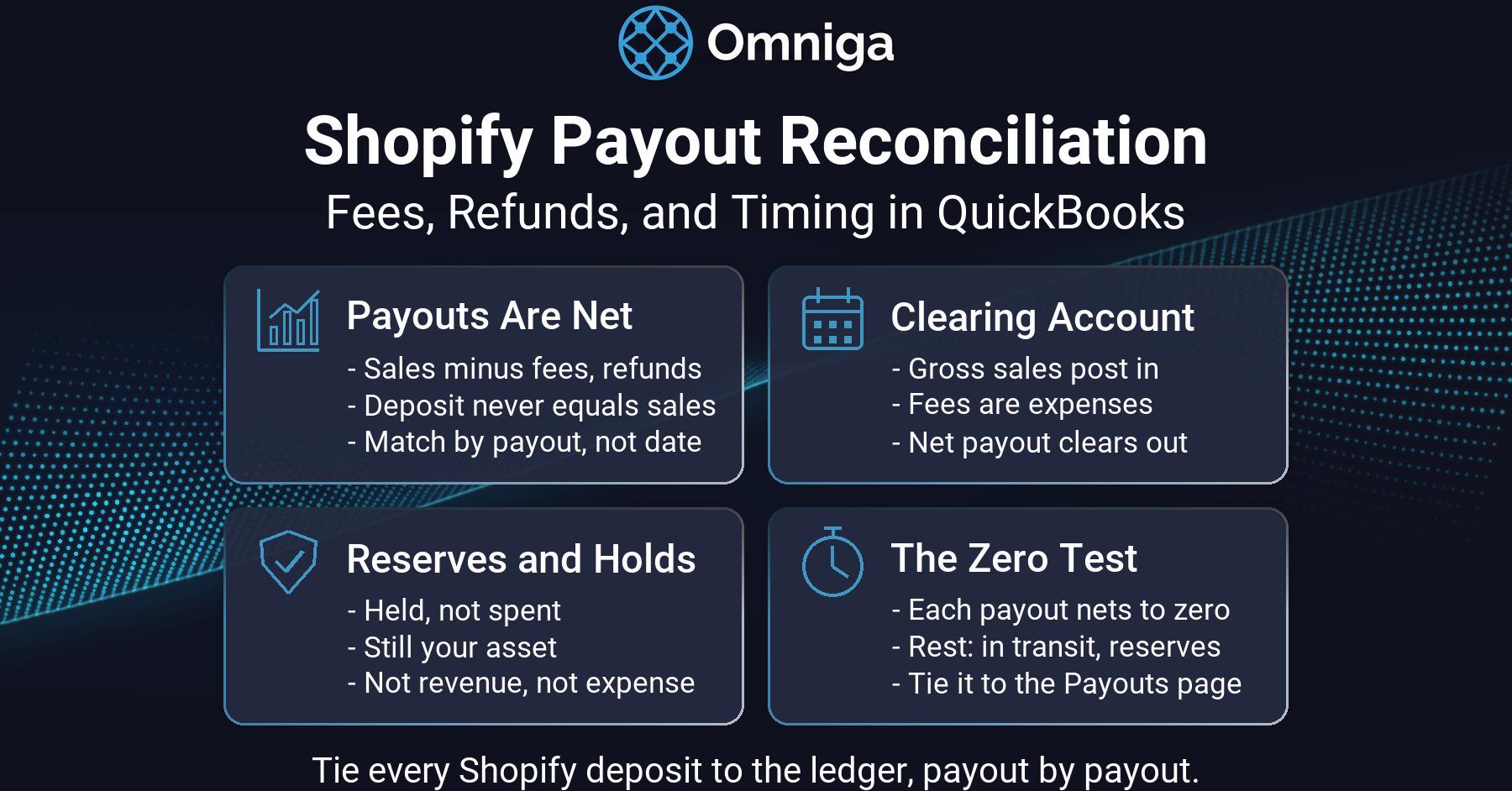
Shopify payout reconciliation in QuickBooks, step by step: the payout report, the clearing-account method, fees, refunds, reserves, and month-end timing.
Table of Contents
Part of our finance automation tools guide.
Shopify payout reconciliation is the process of matching each Shopify payout to the gross sales, fees, refunds, chargebacks, and reserve adjustments that compose it, so the net bank deposit ties back to gross activity on the QuickBooks ledger. Done payout by payout, it keeps revenue gross, makes fees visible as an expense, and brings the clearing account back to zero after every cycle.
Best for: Shopify merchants on QuickBooks Online whose bank deposits never match their sales — or whose clearing account grows every month and nobody can say why. Not for: stores whose problem is the sync itself. If orders aren't landing in QBO correctly yet, start with our Shopify QuickBooks integration guide, then come back for the payout layer. Do this next: open last month's clearing balance and run the zero test from the checklist below.
Why a Shopify Payout Never Matches Your Sales
A Shopify payout is a net number: gross sales minus refunds, processing fees, chargebacks, and any reserve holds. The deposit will never equal sales, and booking it as sales is the single most common Shopify bookkeeping error. Shopify payout reconciliation starts by taking the payout apart and giving each component its own home in QuickBooks:
| Payout component | Sign | Where it belongs in QBO | Posting note |
|---|---|---|---|
| Gross sales | + | Sales revenue | Gross, never net of fees |
| Discounts | − | Contra-revenue (discounts) | Separate line from sales reports (payout charges are already net of discounts) |
| Shipping collected | + | Shipping income | Distinct from product revenue |
| Sales tax collected | + | Sales tax payable | A liability, never revenue |
| Refunds | − | Contra-revenue (returns & refunds) | Dated when refunded, not when sold |
| Chargebacks + dispute fees | − | Chargeback expense | Behave differently from refunds — track separately |
| Shopify Payments fees | − | Merchant fees expense | Out of clearing, not out of revenue |
| Reserve holds / releases | − / + | Stay in the clearing account | Still your money — held, not spent |
| Net payout | = | Clearing account → bank | Matched to the deposit, to the cent |
The payout schedule and the gap between sale and deposit
The second confusion is timing. Shopify Payments pays out on a daily, weekly, or monthly schedule, settlement time varies by region and risk level, weekend captures are grouped into a single payout, and banks add another 1–3 business days before the deposit posts. A sale on the 29th routinely lands in next month's bank statement — which is why reconciling by deposit date breaks down. The unit of reconciliation is the payout.
The Shopify Payout Report: Your Reconciliation Anchor
Everything Shopify payout reconciliation needs is on the Payouts page of your Shopify admin, which shows pending funds, reserved funds, and every scheduled and past payout grouped by payout date. Open a single payout to see the transactions and adjustments inside it, or export the transactions CSV for per-payout fee detail. Do not reconcile from sales reports: they are organized by order date, while the Shopify payout report is organized by disbursement — the only report whose bottom line equals the money that hit your bank.
| Payout-report element | What it tells you | What to do with it in QBO |
|---|---|---|
| Payout date | The date Shopify sent the funds | Date of your journal entry |
| Charges | Gross customer payments, including shipping and tax | Credit revenue, shipping income, and tax payable lines |
| Refunds | Amounts returned in this payout window | Debit contra-revenue, dated to this window |
| Fees | Processing fees on the payout's transactions | Debit merchant fees expense |
| Adjustments | Chargebacks, dispute fees, reserve movements | Debit expense, or leave in clearing if it's a hold |
| Total (net) | What actually reaches the bank | The number your deposit must match |
Match by payout ID, not by deposit date
A payout date can include more than one payout, deposits shift with bank processing time, and refund-heavy payouts can go negative — so anchor every match to the payout itself, not the calendar. QBO won't suggest a match when fees change the total or when multiple payments were deposited as one group — which describes every Shopify payout. The clearing-account method gives the feed something it can match.
Shopify Payout Reconciliation, Step by Step: The Clearing-Account Method
Step 1 — Set up a Shopify clearing account
Create one current-asset account: "Shopify Payments Clearing." It holds money Shopify has collected for you but not yet deposited. (Resist proliferating accounts per channel or fee type — if your chart is already sprawling, see our chart of accounts alternative first.)
Step 2 — Post each payout's gross components into clearing
One journal entry per payout, dated the payout date, straight from the payout report: credit gross sales, shipping income, and sales tax payable; debit fees, refunds, and chargebacks; the balancing debit lands in clearing — exactly the net payout. Revenue stays gross because under ASC 606 a principal presents the price paid by the customer as revenue, with amounts remitted to other parties presented as an expense.
Step 3 — Match the net payout to the bank deposit
When the deposit appears in the bank feed, record it as a transfer from clearing to checking — never as income; the income was already booked, gross, in Step 2. At a few payouts a week this is minutes of work; at daily payouts it is exactly the repetitive matching that AI bookkeeping automation for QuickBooks exists to absorb.
Step 4 — Run the zero test (and expect a small in-transit balance)
After Steps 2 and 3, each payout's trip through clearing nets to zero. That zero is the reconciliation: what Shopify reported, what you booked, and what the bank received are provably the same number. At month-end, though, clearing usually should not be zero — the last 1–3 business days of payouts are in transit, and reserved funds haven't released. A balance you can tie to identifiable in-transit payouts and reserves is correct; a balance nobody can explain is the alarm.
Related reading: stripe reconciliation tools for quickbooks — the same clearing-account discipline, failure modes, and tooling on the Stripe side.
Fees, Refunds, Reserves, and Timing: Where Shopify Payout Reconciliation Breaks
Fees netted into revenue — the invisible cost line
With Shopify Payments you pay a credit-card rate and no separate transaction fee; the exact rate depends on your Shopify plan, with separate domestic and international card rates shown under Settings → Payments. Third-party gateways add a Shopify transaction fee on top. Whatever your rate, the failure mode is the same: book deposits as income and fees never appear anywhere — the top line is understated, margin is fiction, and you cannot evaluate what processing actually costs.
Refunds and chargebacks that land in a different period than the sale
Shopify deducts refunds from your next available payout — so a March refund of a January sale reduces a March payout and belongs in March's books as contra-revenue. Back-dating it to January, or netting it silently into sales, distorts two months at once. At ecommerce volumes this is no edge case:
Key data: An estimated 19.3% of online sales will be returned in 2025, against $849.9 billion in total retail returns (NRF and Happy Returns, 2025 Retail Returns Landscape, October 2025). Roughly a fifth of your transaction flow runs through the refund path — it deserves its own accounts and its own dates.
Chargebacks are costlier still, because the dispute carries fees and workload beyond the transaction:
Key benchmark: Merchants pay an average of $82 in internal costs and $46 in third-party fees per chargeback — $128 before counting the disputed amount or lost goods (Mastercard, citing Javelin research, updated June 2026). A dedicated chargeback expense account is what makes that cost visible.
Reserves and payout holds — held, not spent
Shopify Payments can hold back part of your sales: a reserve withholds a certain percentage of transactions for a specified period, there to cover potential disputes and refunds. Reserved funds are still your asset — they stay in clearing until released, and the Payouts page shows the reserved amount so the balance ties out. They are not revenue to remove or an expense to write off. Dispute pressure is why reserves exist, and it is rising:
Key finding: Merchants estimate they lose more than four dollars for every dollar disputed once fees, lost inventory, and overhead are counted; nearly 62% say dispute volumes rose over the past three years (Chargebacks911's 2026 Chargeback Field Report, via Financial IT).
Cross-month payouts: the accrual cut that keeps the close honest
The last payouts of the month are in transit at close: the sales inside them belong to the month that just ended, the deposits to the new one. The clearing account holds that straight — revenue posts gross in the closing month, and the month-end clearing balance equals in-transit payouts plus reserves, a number you verify against the Payouts page rather than plug. Get the cut wrong and every month borrows revenue from its neighbor.
| Symptom | Likely cause | Fix |
|---|---|---|
| Clearing balance grows every month | Payouts posted but never matched, or duplicates from a re-sync | Reconcile payout-by-payout; de-duplicate on payout ID |
| Deposit sits unmatched in the bank feed | QBO can't tie a net deposit to gross records | Record it as a transfer from clearing, not income |
| Fee expense account is empty | Deposits booked as income; fees netted away | Rebuild entries from the payout report, fees to expense |
| Revenue sags in refund-heavy months | Refunds back-dated to the sale month | Date refunds to the payout window they reduced |
| Month-end clearing balance "looks wrong" | In-transit payouts and reserves not identified | Zero test per payout; tie the residual to the Payouts page |
How Omniga Handles Shopify Payout Reconciliation on the QuickBooks Ledger
Shopify is one of the three platforms Omniga supports (with Stripe and Square), so this section is first-person: we run Shopify payout reconciliation as part of the monthly close — ingest each payout, post its gross components to the right QBO accounts, match the net deposit to clearing, and run close checks that catch drift before it compounds. The connector or native sync can stay; we operate the books layer on the ledger they feed.
Quiet AI™ Note: We optimize for exception-first accounting: auto-post what's confident, route the rest to review.
What we see in Shopify ledgers that land on our desk
The pattern repeats. A clearing balance equal to several weeks of sales, built from eighteen months of unmatched payouts. A merchant-fees account empty since launch, because deposits were booked as income. Refunds keyed against months-old invoices, changing closed periods after the fact. None of it is a tool failure — it is per-payout work nobody owned. That ownership is the product: automated posting and matching with a human review layer, closer to automated bookkeeping software than to another connector. The evidence for that pairing is encouraging: accountants using AI-based accounting software cut monthly close time by 7.5 days, with experienced professionals intervening precisely where AI confidence signals uncertainty (Stanford GSB working paper, May 2025).
Honestly not for you if: your clearing account already zeroes monthly; your ledger isn't QuickBooks Online; or four journal entries a month covers your volume. If payout reconciliation is recurring work you'd rather not own, our ecommerce bookkeeping software runs it — fees, refunds, reserves, and the month-end cut — on your own QBO file.
Related reading: Shopify bookkeeping services — the full service picture beyond the payout layer.
A Monthly Shopify Payout Reconciliation Checklist
Shopify payout reconciliation is a per-payout habit plus a month-end verification.
Per payout:
- Export the payout's transactions; confirm charges − refunds − fees ± adjustments = net.
- Post the journal entry: revenue gross, tax to liability, fees and chargebacks to expense, net to clearing.
- Match the deposit to clearing as a transfer — flag any deposit without a payout behind it.
At month-end:
- Run the zero test: every completed payout's clearing trip nets to zero.
- Tie the remaining clearing balance to in-transit payouts and reserves on the Payouts page; it should rarely exceed a few days' sales.
- Verify the fee account holds the month's fees (roughly your blended rate × card volume), refunds sit in their payout windows, and no closed period changed.
- Reconcile the bank account itself — bank reconciliation software habits apply unchanged.
If the books behind the payouts need deeper repair — COGS, inventory, sales tax history — start with our bookkeeping for shopify guide rather than reconciling on sand.
Frequently Asked Questions
Why doesn't my Shopify payout match my QuickBooks deposit?
Because a Shopify payout is net: Shopify deducts processing fees, refunds, chargebacks, and any reserve holds from gross sales before depositing, and banks add 1–3 business days of delay. Shopify payout reconciliation fixes the mismatch by posting gross components from the payout report through a clearing account and matching the net deposit against it — if it still doesn't tie, look for duplicates, missed refunds, or a reserve hold.
What is a Shopify clearing account and do I need one?
A Shopify clearing account is a current-asset account in QuickBooks that holds the gap between gross Shopify activity and net bank deposits. Gross sales post into it, fees and refunds post out, and each net payout clears against its deposit. Every store on Shopify Payments needs one — without it, QuickBooks can only misbook deposits as income.
Where do I find the Shopify payout report?
On the Payouts page of the Shopify admin, which lists payouts by payout date along with pending and reserved funds. Open any payout to see the charges, refunds, fees, and adjustments inside it, or export the transactions CSV for fee detail. The payout report is the anchor for Shopify payout reconciliation because its total equals the bank deposit.
How do I record Shopify fees and refunds in QuickBooks?
Fees post to a merchant-fees expense account out of clearing — never netted from revenue, which understates both sales and costs. Refunds post as contra-revenue dated to the payout window in which Shopify deducted them, not back-dated to the sale. Chargebacks and their dispute fees get their own expense account, because they arrive later and cost more than refunds.
Should the Shopify clearing account always be zero at month-end?
No — a forced zero usually means something was plugged. Each completed payout nets to zero in clearing, but at month-end the account correctly holds payouts still in transit (1–3 business days of sales) plus any reserved funds. The test is that the balance ties exactly to the Payouts page; an unexplained residual is the real red flag.
The Bottom Line
Shopify payout reconciliation treats the payout — not the order, not the deposit — as the unit of accounting. Pull the payout report, post gross components where they belong, match the net to the bank through a clearing account, and run the zero test with an honest allowance for in-transit funds and reserves at the cut. Do that monthly and fees, refunds, and reserves stop being surprises; skip it and the clearing account quietly keeps score. More in this series: see all finance OS solutions guides.